This guide describes how to create your first REST projects in SoapUI. ReadyAPIjects are the central point in all SoapUI testing. Once you create the project, you can expand it with functional tests, load tests, mock services, and much more. This tutorial uses the sample Petstore web service located at http://petstore.swagger.io/v2/swagger.json to describe the two main steps of creating a REST project.
The REST testing bases around sending different requests to a RESTful API and verifying responses from it. This tutorial describes the basic ways of creating REST projects in SoapUI:
- Create REST project from Endpoint
- Create REST project from Definition
Create REST Project From Endpoint
-
In the Navigator, right-click Projects and select New REST Project.
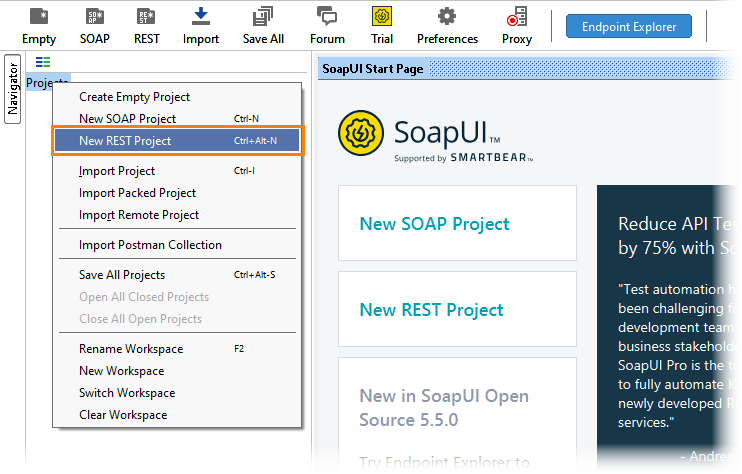
The New REST Project dialog will appear.
Note: To create a new REST project, you can also press CTRL+ALT+N (in Windows) or CMD+ALT+N (in OS X).
-
In the dialog, specify the URI path to your REST API in the URI edit box.
-
Click OK
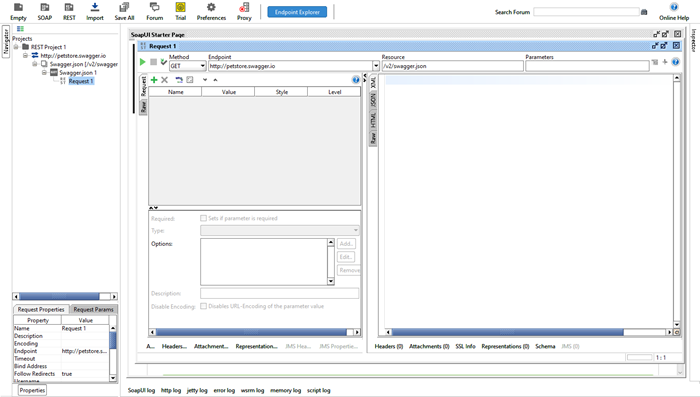
Now you're presented with our main screen for REST projects. Click the Green Play Button in the top left and you'll see the API's response.
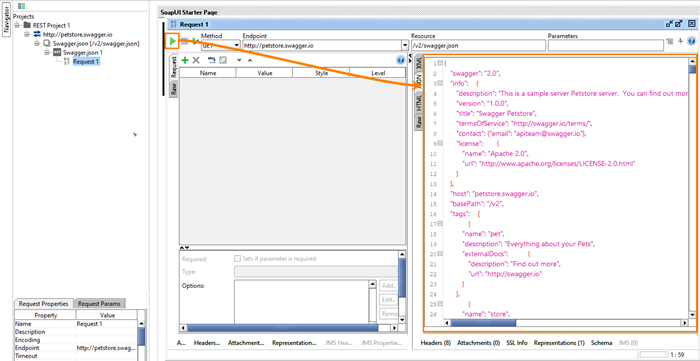
We can now visually explore our API and it's responses. But to create an assertion, we'll first have to create a Test Case.
In the left-hand Navigator window, right click "Request 1" and then click "Add Test Case".
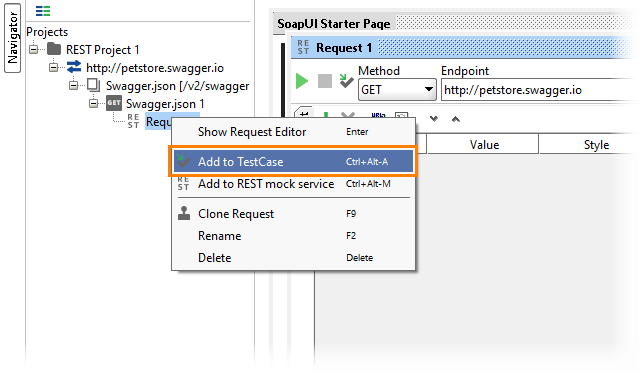
Now we see our Test Case window, where we can create assertions. We'll need to click the Green Play Button again to see our response.
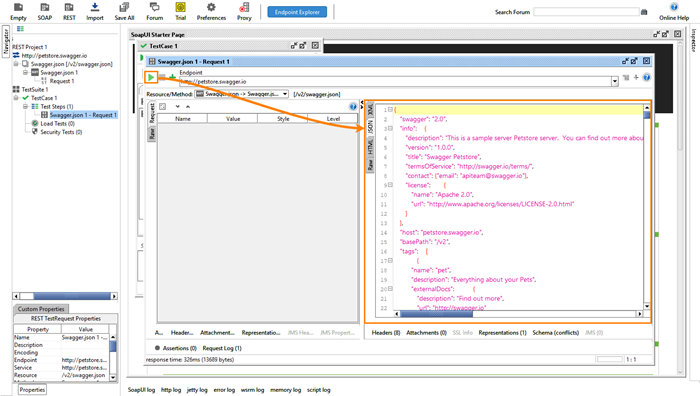
To create our first assertion, select the Assertion tab in the bottom left and click the Green Plus Sign.
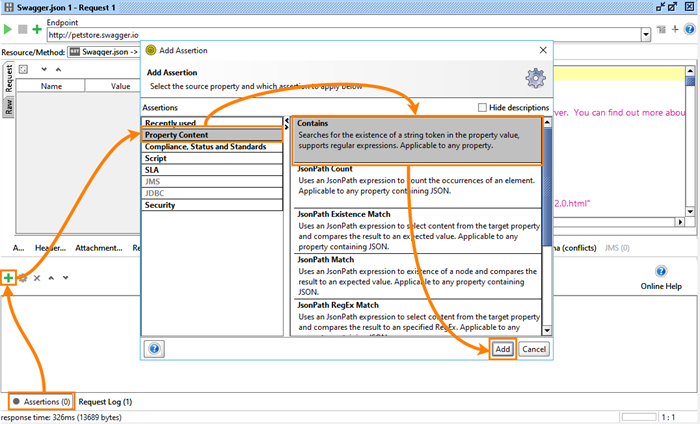
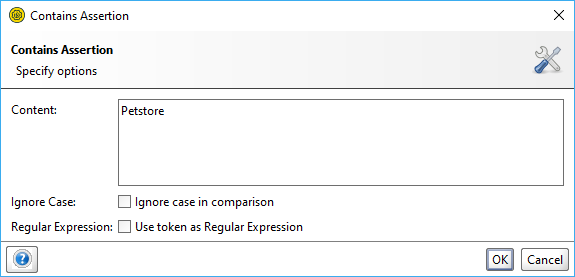
Select the Contains assertion, and verify that "Petstore" is present.
The new project we've made will appear in the Navigator, along with the web service operations available for the REST API in question. You can then double-click the name of the project to get a project overview:
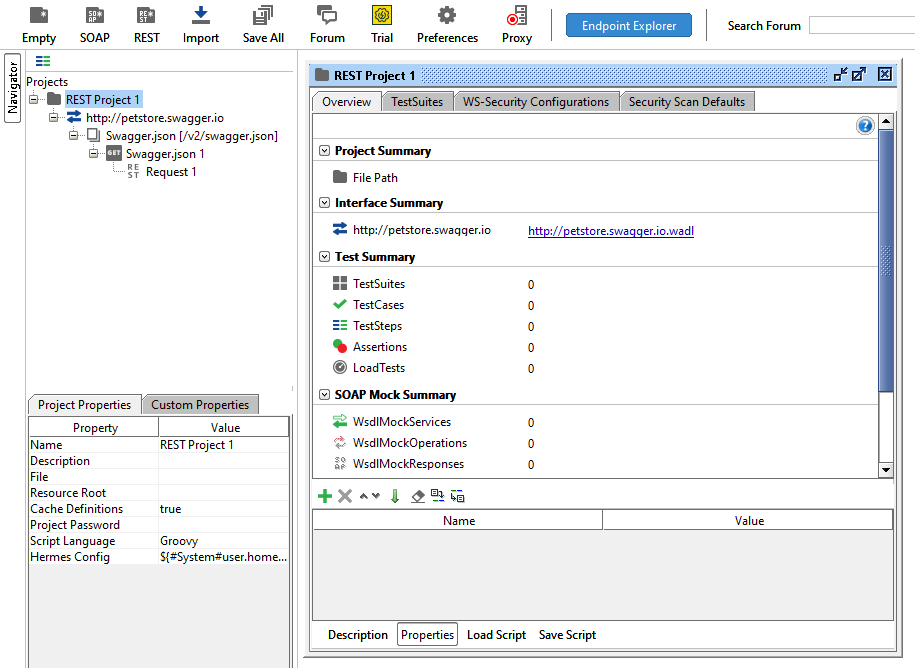
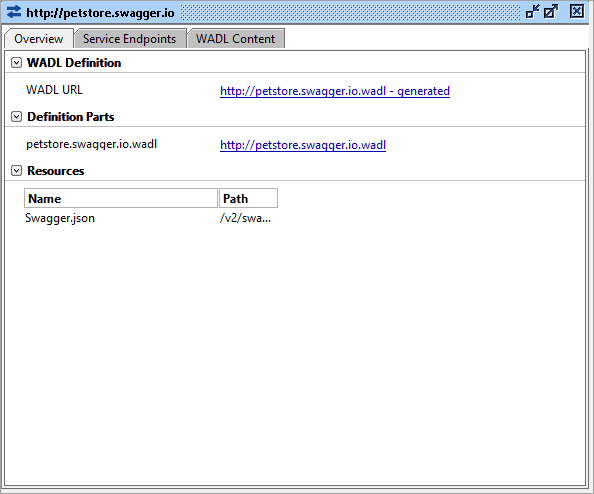
Double-click the name of the service to get the service overview:

SoapUI Open Source
- Support for SOAP and REST API Testing.
- Easy multi-environment switching.
- Detailed test history and test comparison reporting.

SoapUI Pro
- Support for SOAP, REST, and GraphQL API Testing.
- Easy multi-environment switching.
- Detailed test history and test comparison reporting.
Next Steps
Check out SoapUI 101, our comprehensive beginner's guide to API testing! It's loaded with step-by-step tutorials for getting with SoapUI and ReadyAPI: Read the Guide