NOTE: This page contains information on standalone SoapUI Pro that has been replaced with ReadyAPI. To try enhanced load testing functionality, feel free to download a ReadyAPI trial from our website.
Overview - LoadTest Window
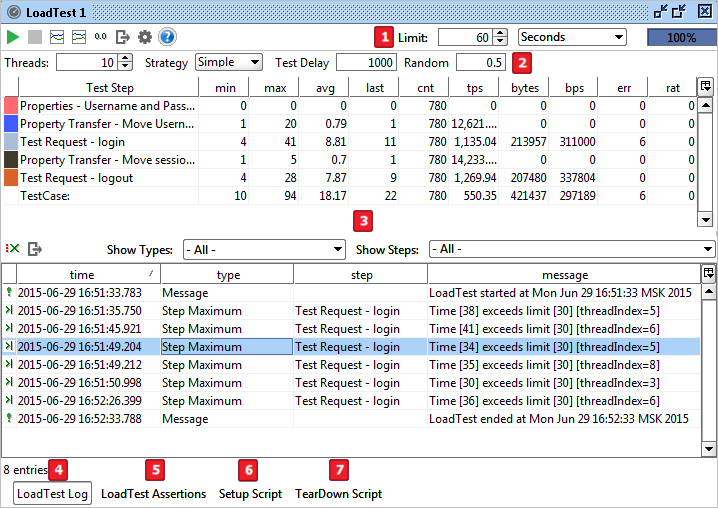
LoadTest Toolbar

 LoadTest Toolbar Buttons
 |
Run |
Starts the LoadTest as described under LoadTest Execution |
 |
Cancel |
Cancels an ongoing LoadTest |
 |
Statistics Graph |
Show the Statistics Graph for the LoadTest |
 |
Statistics History Graph |
Show the Statistics History Graph for the LoadTest |
 |
Reset Statistics |
Resets the statistics for an ongoing LoadTest |
 |
Options |
Shows the LoadTest Options dialog |
 |
Export Statistics |
Prompts to export the current LoadTest Statistics to a comma separated file |
 |
Limit Settings |
Sets the limit for the LoadTest as described in the Execution document |
|
|
The far right contains a Progress Bar displaying the progress (in percent) of the current LoadTest execution |
Strategy Bar

Strategy Bar Options
| Threads |
Sets the number of threads to be used. |
| Strategy |
Choose a LoadTest Strategy. |
| Test Delay |
The time in milliseconds between each batch of requests. |
| Random |
The random factor of the Test Load. With a Test Delay of 600 ms and a Random factor of 0.5, the actual delay will be uniformly distributed between 300 ms and 600 ms. The actual delay can thus be calculated as TestDelay - RandomNumberBetween( 0, TestDelay*Random ). |
The following LoadTest Strategies are currently available:
| Burst |
TestCase execution in "bursts" |
| Script |
Lets a groovy script control the number of threads (ReadyAPI only) |
| Simple |
TestCase execution with a configurable delay |
| Variance |
TestCase execution varying the number of threads over time |
| Grid |
Defines a custom variation of thread count (ReadyAPI only) |
| Fixed-Rate |
Execute a TestCase at a fixed rate (ReadyAPI only) |
| Thread |
TestCase execution with a fixed thread count modification |
Statistics Table
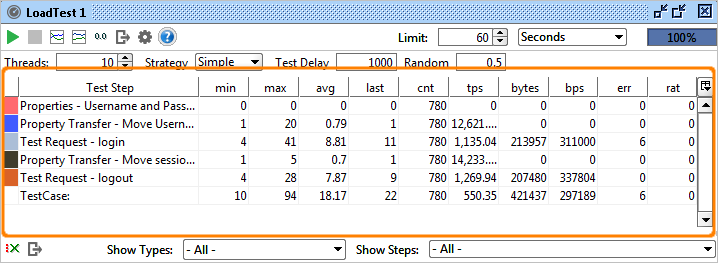
 During execution, the following statistics are periodically collected and displayed in the Statistics Table:
| Test Step |
Sets the startup delay for each thread (in milliseconds), setting to 0 will start all threads simultaneously. |
| min |
The shortest time the step has taken (in milliseconds). |
| max |
The longest time the step has taken (in milliseconds). |
| avg |
The average time for the test step (in milliseconds). |
| last |
The last time for the test step (in milliseconds). |
| cnt |
The number of times the test step has been executed. |
| tps |
The number of transactions per second for the test step, see Calculation of TPS/BPS below. |
| bytes |
The number of bytes processed by the test step. |
| bps |
The bytes per second processed by the test step. |
| err |
The number of assertion errors for the test step. |
| rat |
Failed requests ratio (the percentage of requests that failed). |
Statistics Table Actions
Right-click on any row of statistics table to open the action menu.
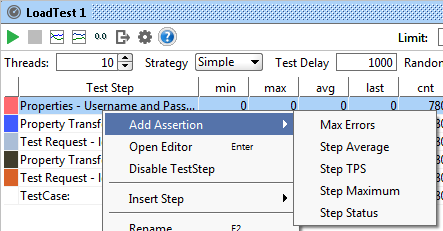
 Statistics Table Actions' option
| Max Errors |
Asserts the total number of errors |
| Step Average |
Asserts a steps average |
| Step TPS |
Asserts a steps TPS |
| Step Maximum |
Asserts a steps max time |
| Step Status |
Asserts a steps status |
 LoadTest Log Tab
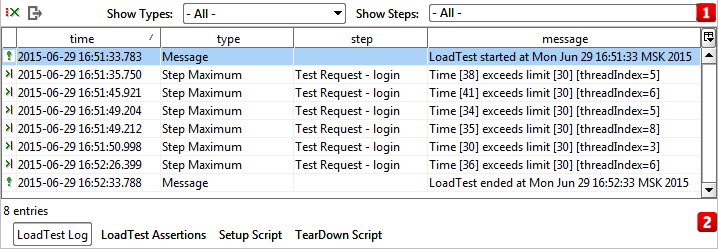
LoadTest Log Tab – Toolbar
The top toolbar contains the following actions (left-to-right):
 |
Remove Errors |
removes all errors from the LoadTest Log |
|
Export |
prompts to export the current LoadTest log to a file |
|
Show Types filter |
filters which type of errors/messages that should be shown in the log |
|
Show Steps filter |
filters which steps that should be shown in the log |
LoadTest Log Tab – Table
The table is sortable by clicking the column-header for the column to be sorted on. A label under the table displays the number of rows currently in the table.
| Time |
Date and Time of log entry |
| Type |
Type of log entry |
| Step |
TestStep when logging occurs |
| Message |
Error message |
LoadTest Assertions Tab
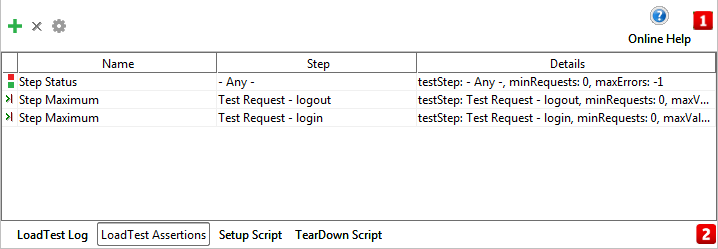
LoadTest Assertions Tab – Toolbar
The toolbar at the top of the tab contains the following actions (left-to-right):
 |
Add Assertion |
Prompts to add and configure a new LoadTest Assertion |
 |
Remove Assertion |
Prompts to remove the currently selected assertion |
|
Configure |
Shows the options for the currently selected assertion |
LoadTest Assertions Tab – Table
| Name |
Configured name of the assertion |
| Step |
Target step for the assertion |
| Details |
Detailed information on the assertion |
LoadTest Assertions Table Popup Menu
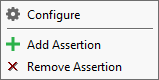
|
Configure |
Configure selection assertion |
|
Add Assertion |
Add an assertion to this LoadTest |
|
Remove Assertion |
Remove an assertion from this LoadTest |
LoadTest Setup Script Tab

LoadTest Setup Script Tab – Toolbar
LoadTest Setup Script Tab – Editor
LoadTest TearDown Script Tab

LoadTest TearDown Script Tab – Toolbar
LoadTest TearDown Script Tab – Editor
Note: Setup Script, TearDown Script and Report Script are using the same script editor.
LoadTest Report Script Tab
LoadTest Report Script Inspector (Pro)

LoadTest Report Script Tab - Toolbar
| Edit |
Insert the code at carat |
LoadTest Report Script Tab - Editor
Setup Script, TearDown Script and Report Script use the same script editor.
LoadTest Report Parameters Tab 

LoadTest Report Parameters Tab – Toolbar
 |
Add Property |
Ctrl/Add a property to the property list-C |
 |
Remove Property |
Remove the select property from the property list |
 |
Move up |
Move selected property up one row |
 |
Move down |
Move selected property down one row |
 |
Sort Properties |
Sort Properties alphabetically |
 |
Clear all values |
Clear all current property value |
 |
Load property value |
Load property value from an external file |
 |
Save current property value |
Save current property value to a file |
LoadTest Report Parameters Tab – Table
| Name |
Name of the Parameter |
| Value |
Value of the Parameter |